BlackOps Now Works for Teams
Invite people by email to your workspace. They get every site, note and brain, and each one is a seat on your plan.
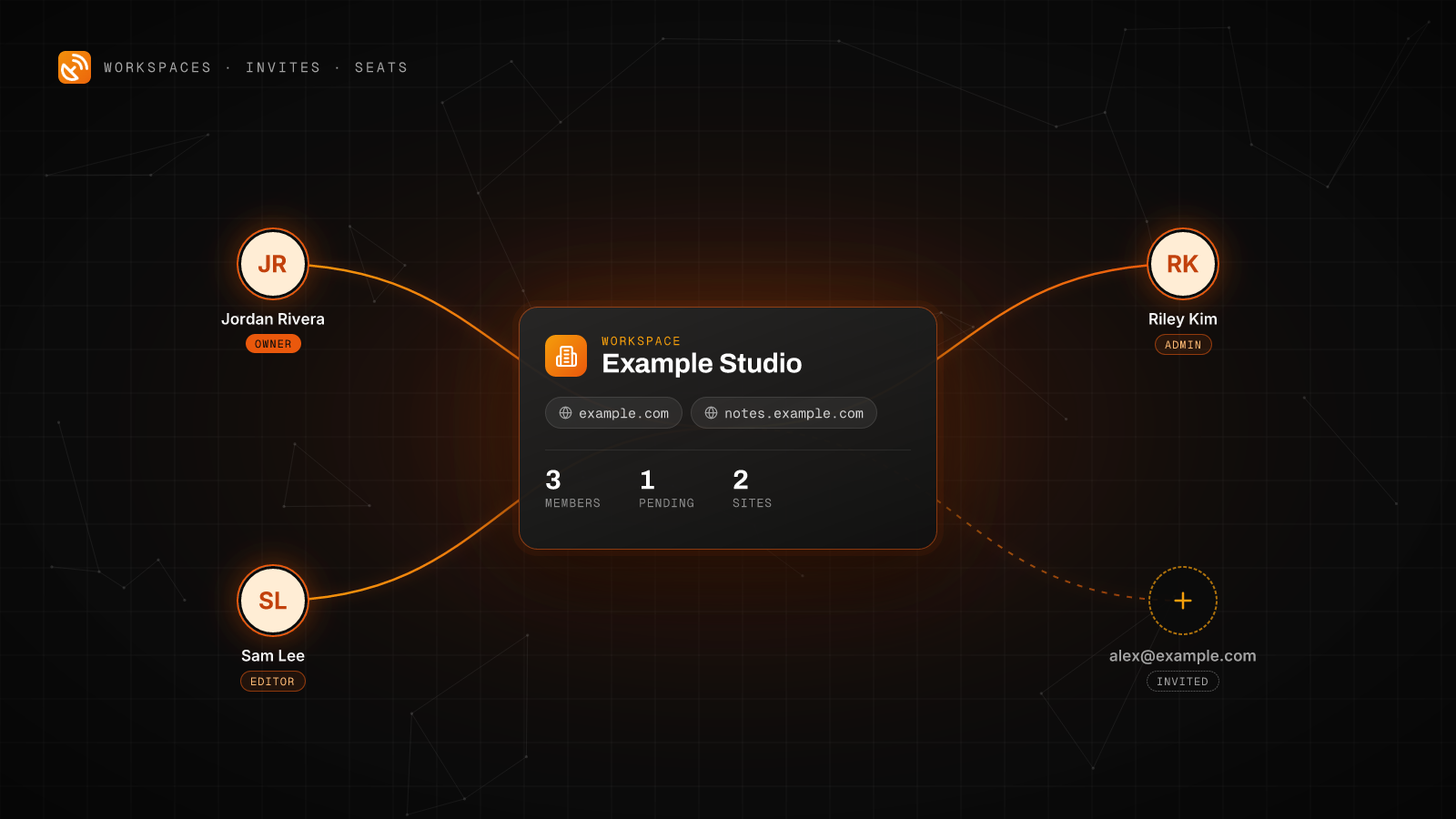
You can now bring other people into BlackOps. Invite someone by email, and once they join they work on the same sites, notes and brains you do. Each teammate is a seat on your plan. The screens below use sample names and addresses.
Your sites live in a workspace
A workspace sits above your sites. If you run example.com and notes.example.com, both belong to one workspace, and that workspace is what you invite people into. Members get every site in it. Add a site later and everyone already in the workspace gets it too.
The workspace name now sits at the top of the admin sidebar. Under it, a Workspace section holds Team, Sites, Account & Billing, and your knowledge and repository settings.
Send an invite
- Open Team under Workspace in the admin sidebar.
- Type one or more email addresses. Separate several with commas or new lines.
- Pick a role, Editor or Admin.
- Click Send invites.

Each person gets an email with a join link to the whole workspace. Right after you send, each invite also shows a Copy link button, so you can pass the link along yourself if the email gets buried. The link only works for the address you invited, and BlackOps shows it to you once.

Invites wait under Pending invites until the person joins. Resend sends a fresh link and turns the old one off. Cancel invite withdraws it. An unused invite expires after 14 days.
What your teammate sees
The join link opens a page that names who invited them, the workspace, the sites it includes and the role they will have. New people create their account right there. People who already use BlackOps sign in with the address the invite went to. If they are signed in under a different address, the page says so and offers to switch accounts.

Roles
Each role covers every site in the workspace.
- Owner: you. The workspace and the bill are yours.
- Admin: works on everything and can invite or remove editors.
- Editor: works on every site, note and brain in the workspace.
Only the owner can invite someone as an admin. From the Members list you can change a role or remove someone. Removal takes their access away right away. Their work stays, and you can invite them again later.
Seats and what they cost
Every plan includes you. Solo is just you. Pro holds up to 2 teammates, and Operator has no limit.
Each teammate is $25 a month, or $240 a year, billed to your plan and prorated from the day they join. Pending invites are free, but they count toward your limit, so the Team page tells you how many seats are left before you send. The Members card keeps a running total, for example "2 people. 1 paid seat, $25 a month."
A few details worth knowing before you invite:
- One person is one seat, even if they belong to more than one of your workspaces.
- During a trial, seats start with your first payment.
- Whenever someone joins, you get an email that says what it did to your bill. That matters when an admin sent the invite.
- Removing someone takes their seat off the bill, prorated.
- A seat limit never removes anyone. To move to a plan with fewer seats, remove people or cancel invites on the Team page first, then switch plans.
Current plan prices are on the pricing page.
If you are on Pro or Operator, open Team and send your first invite. If you are on Solo and want someone helping with your sites, Pro adds room for two teammates.
See how BlackOps works at blackopscenter.com. Follow @BlackOpsTools for product updates.
Build brains your agents can actually run on.
Related Posts
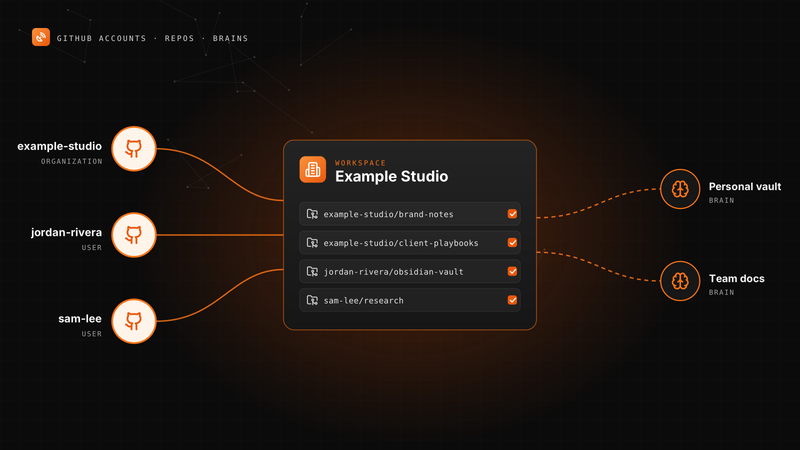
Connect More Than One GitHub Account to BlackOps
A BlackOps workspace can now connect several GitHub accounts. Here is how to add one, pick knowledge repos, point repo targets and brains at any of them, and change access later.

Your Agent Now Asks Which Brain a Note Belongs In
When your AI agent saves a note and no single brain clearly owns it, BlackOps doesn't guess. It saves the note and puts up to three choices in front of you, with reasons, in the chat you're already in.
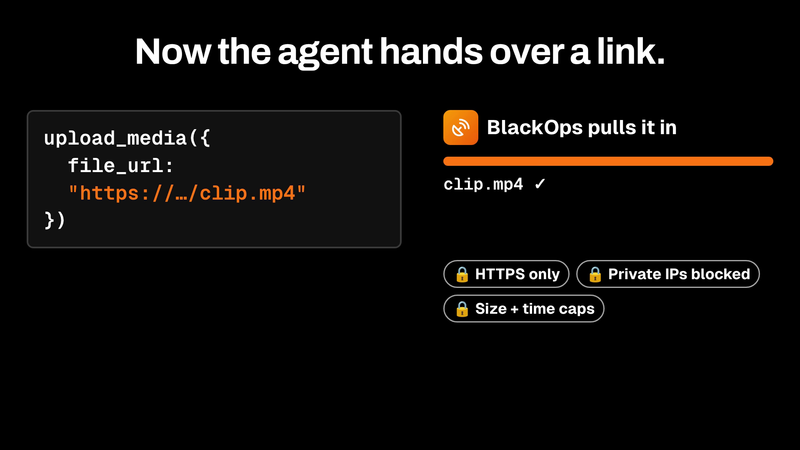
upload_media now pulls files in by URL
upload_media now takes a file_url. BlackOps fetches the file server-side behind SSRF guards and returns an asset ID that attaches straight to a tweet or post.