Connect More Than One GitHub Account to BlackOps
Your personal vault, an organization and a second GitHub user can all feed one workspace's notes and brains.
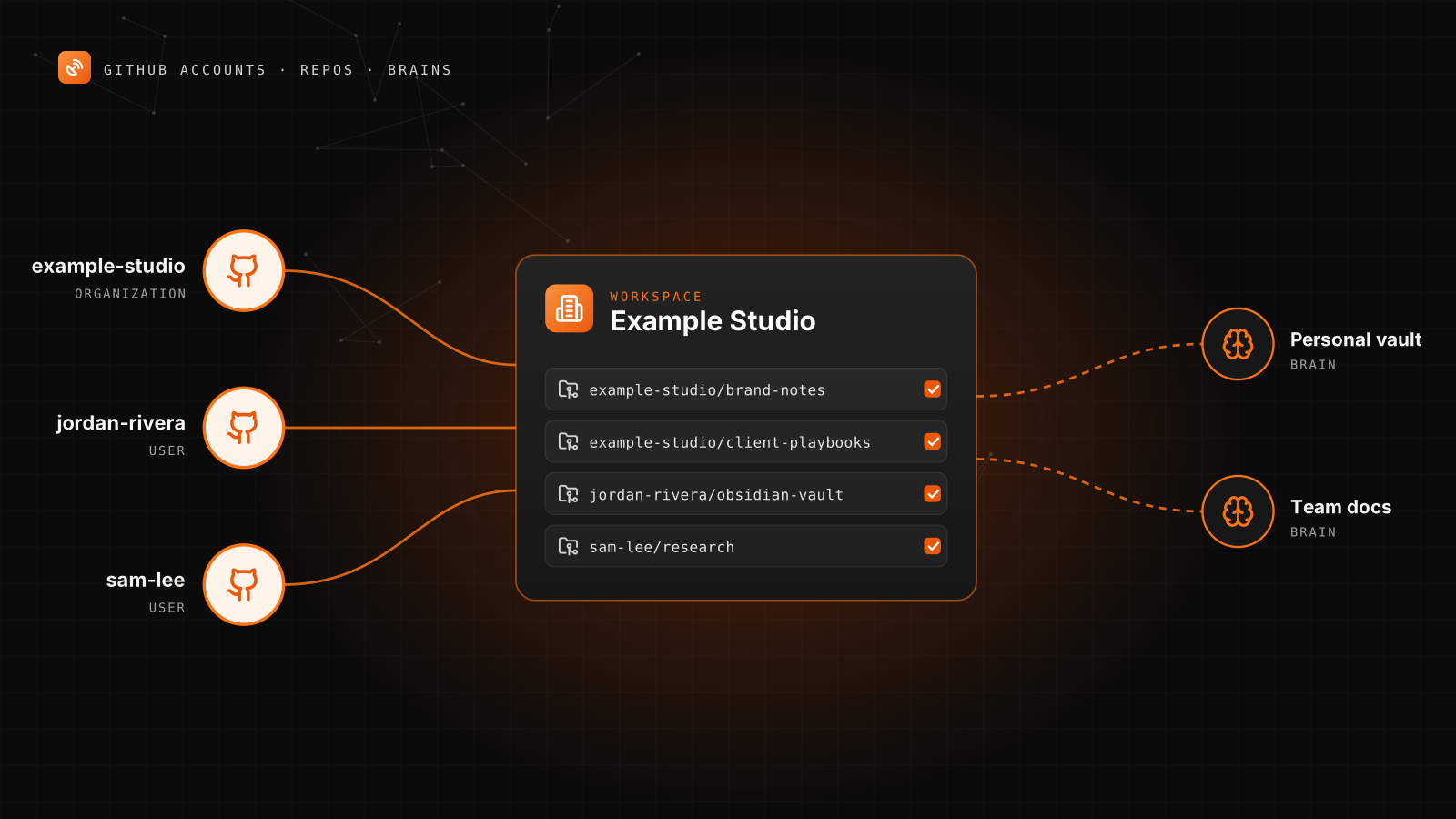
Your notes rarely live in one place. Maybe your Obsidian vault sits in your personal GitHub account, your team's docs live in an organization, and a second GitHub user holds one more repo you want in the mix. A BlackOps workspace can now connect all of them. Each account chooses which repos BlackOps can see, and any repo you pick can hold synced notes and feed your brains.
The screens below use sample accounts and repos.
Where this lives
Open Connect Repository under Workspace in the admin sidebar. The page has two steps. Step 1 connects GitHub accounts. Step 2 picks which of their repos BlackOps treats as knowledge repositories.
BlackOps connects through its own GitHub App, and you stay in control of what it sees. It only touches the repos you grant, and only the folders you point it at.
Connect your first account
- Click Connect GitHub.
- On GitHub, install the BlackOps GitHub App on the account or organization that owns your repo.
- Choose which repositories the app can see, then save.
GitHub sends you back to BlackOps. If it leaves you on its installation page instead, return to Connect Repository and click Complete Connection.
Add another GitHub account
Once one account is connected, the same button reads Add Another GitHub Account.
- Click Add Another GitHub Account.
- Pick the account on GitHub. That can be an organization or a different GitHub user. For a second user, sign in to GitHub as that user first.
- Choose the repos the app can see for that account, then save.
Every connected account gets its own row with its type, its status and how many repos it shares with BlackOps.

For safety, BlackOps only attaches a GitHub installation that was created or updated shortly after you clicked Connect on this page, or one that belongs to an account already connected to your workspace. If you installed the app on GitHub a while ago, click Add Another GitHub Account again and finish the install there.
Pick your knowledge repositories
Step 2 lists every repo your accounts share, grouped under the account it comes from. Tick Use as knowledge repo for each one you want BlackOps to sync with, then click Finish Repository Setup.
If you like, BlackOps can create three starter targets in each repo you pick: Ideas at /notes/ideas, Daily at /journal/daily and Work Initiatives at /initiatives. Leave that box unticked and you define your own.
Point notes and brains at any of them
A repo target is the folder where notes get written. Open Repo Targets under Workspace, give the target a name, then choose a Repository, a Branch and a Path. The Repository list holds your knowledge repos from every connected account, so a target can land in your personal vault or in the organization's docs repo.

Brains build on the same targets. Open Brain under Knowledge, choose New Brain, pick a Vault Target and, if you want, a Source Folder Path. A brain on your personal vault and a brain on the team's docs can live side by side in one workspace, and your agents can read both.
Sync runs both ways. A note promoted from BlackOps or from an AI client is written to the repo as markdown. Edit the file in the repo and BlackOps picks up the change within seconds.
Change what BlackOps can see
You choose which repos BlackOps sees on GitHub, not inside BlackOps. Each account row has a Manage repository access button that opens that account's GitHub App settings in a new tab. Add repos there, or pick All repositories, and save. When you come back to the BlackOps tab, the list refreshes on its own.
Refresh Repositories re-reads what every connected account shares, if you want to update the list by hand.
Disconnect an account
Disconnect removes that account and its repos from the workspace. Any repo that a repo target or synced notes still point at is kept and marked inactive, not deleted. The same goes for a repo GitHub stops sharing, so your targets and sync history stay intact.
GitHub is optional
Brains work without GitHub. By default a brain's notes live in BlackOps, and it compiles on its own. Connecting a repo is an upgrade for people who want their notes as plain markdown files they own and can edit in their own tools. Connecting several accounts just means that upgrade now covers every place you keep them.
The full walkthrough is in the Knowledge Sync docs.
If you keep notes in more than one GitHub account, open Connect Repository and click Add Another GitHub Account.
See how BlackOps works at blackopscenter.com. Follow @BlackOpsTools for product updates.
Build brains your agents can actually run on.
Related Posts

Your Agent Now Asks Which Brain a Note Belongs In
When your AI agent saves a note and no single brain clearly owns it, BlackOps doesn't guess. It saves the note and puts up to three choices in front of you, with reasons, in the chat you're already in.
BlackOps Now Works for Teams
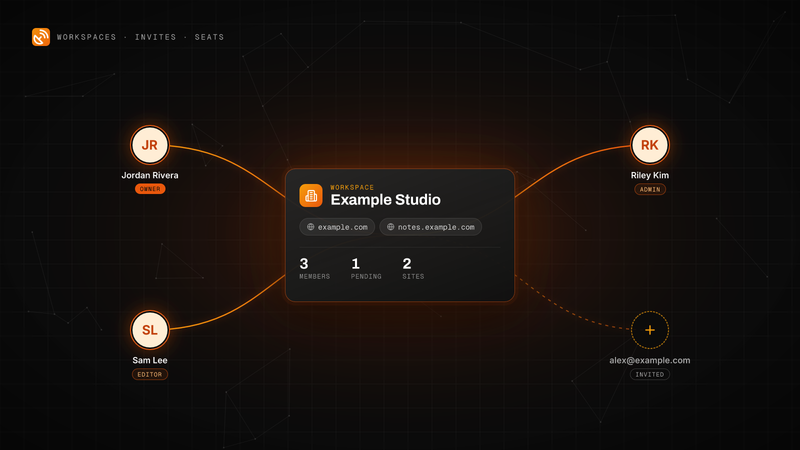
Workspaces, email invites and teammate seats are live in BlackOps. Here is how to send an invite, what your teammate sees, the three roles, and how seats are billed on Pro and Operator.
Write one line. It's in the right brain by morning.
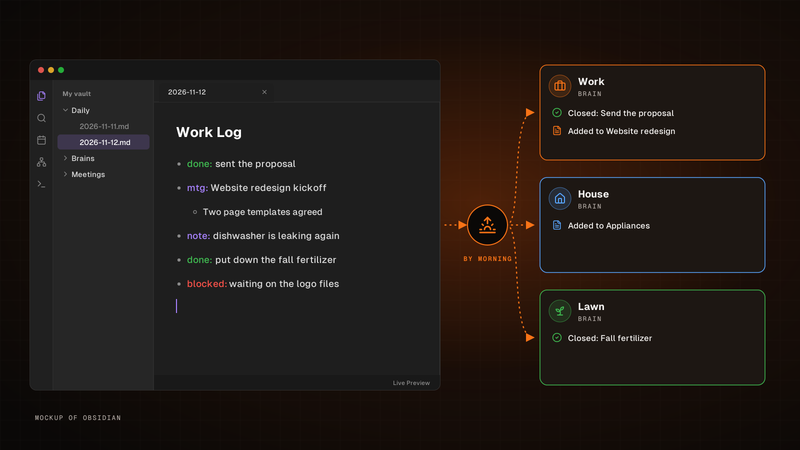
Write one line for each thing that happened in the Work Log of your Obsidian daily note. By morning, BlackOps has closed the to-dos and brain tasks you finished, filed the rest into the brain note each line is about, and opened your next note with a receipt.