Your Vault Shouldn't Belong to One Agent
The BlackOps Center plugin keeps your brains in your Obsidian vault, both ways, so every agent reads and writes the same notes.
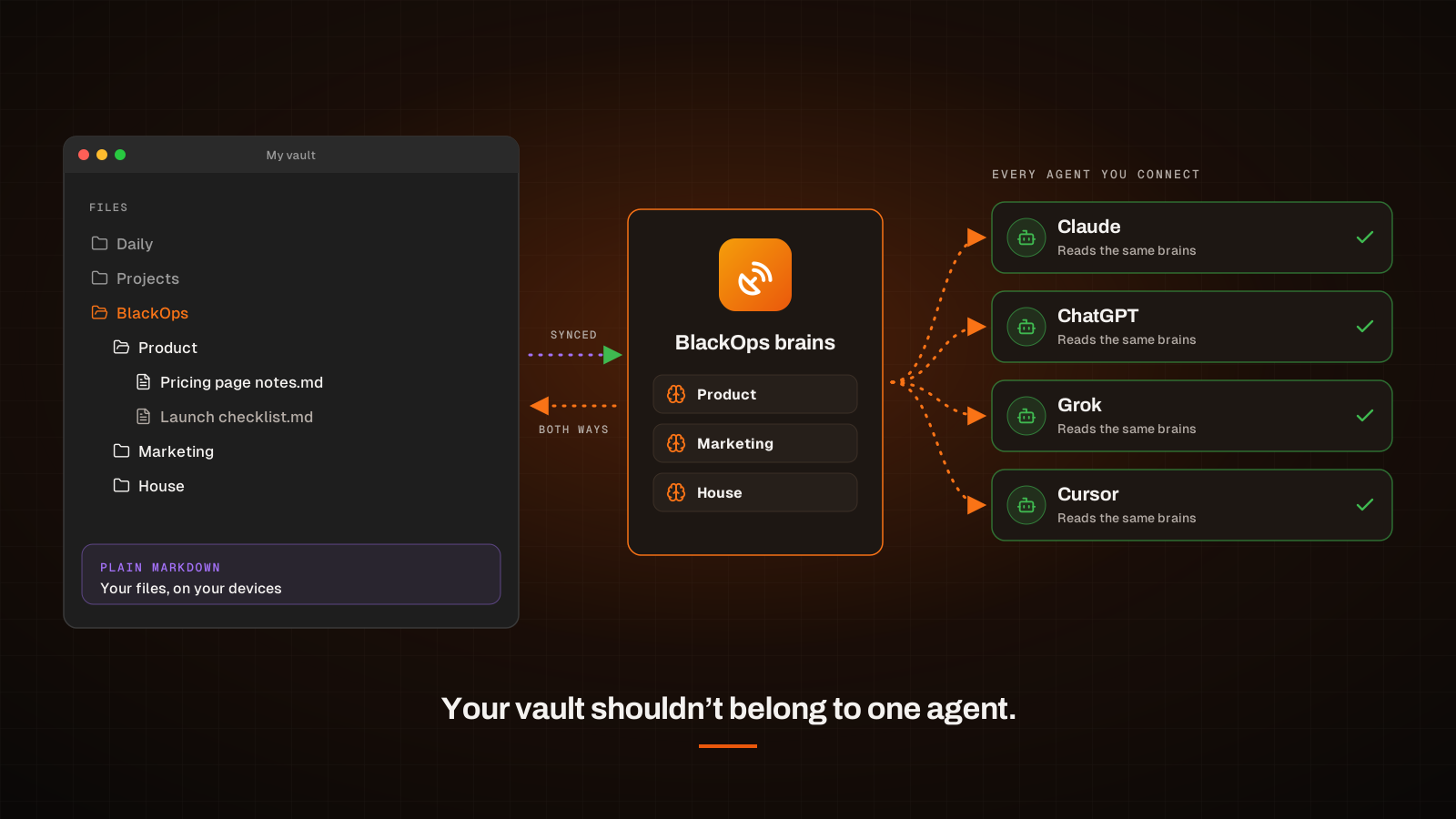
Your Obsidian vault holds the notes, decisions, drafts and details your work depends on. Once you start working with agents, the question is which of them gets to read it.
Most setups connect your vault to a single agent. That works until you add a second. One agent knows your notes, the next does not, the coding agent in your editor starts from zero, and you paste the same context into every chat.
We built the BlackOps Center plugin for Obsidian to take a different route. Your notes stay in your vault as plain Markdown files. BlackOps sits between your vault and every agent you connect, so the note you edit in Obsidian in the morning is the note every agent reads that afternoon. When an agent writes something down, it lands back in your vault as a file you can open.
What the plugin does
The plugin keeps your BlackOps brains in sync with a folder in your vault, in both directions. No GitHub repo, no git, no command line.
- Each brain gets its own folder inside one BlackOps folder, called BlackOps unless you rename it.
- Changes come down when you open Obsidian, when you come back to it, every minute while it's in front, and whenever you press Sync now.
- Your edits go up about five seconds after you stop typing, and again when you close the app.
- A new note in a brain folder becomes a new note in that brain. Renaming the file renames the note.
- It works on desktop, iPhone and iPad.
When an edit lands in BlackOps, the brain recompiles on its own. A few minutes later, every connected agent is working from the new version.
Set it up in four steps
1. Install it from Community plugins
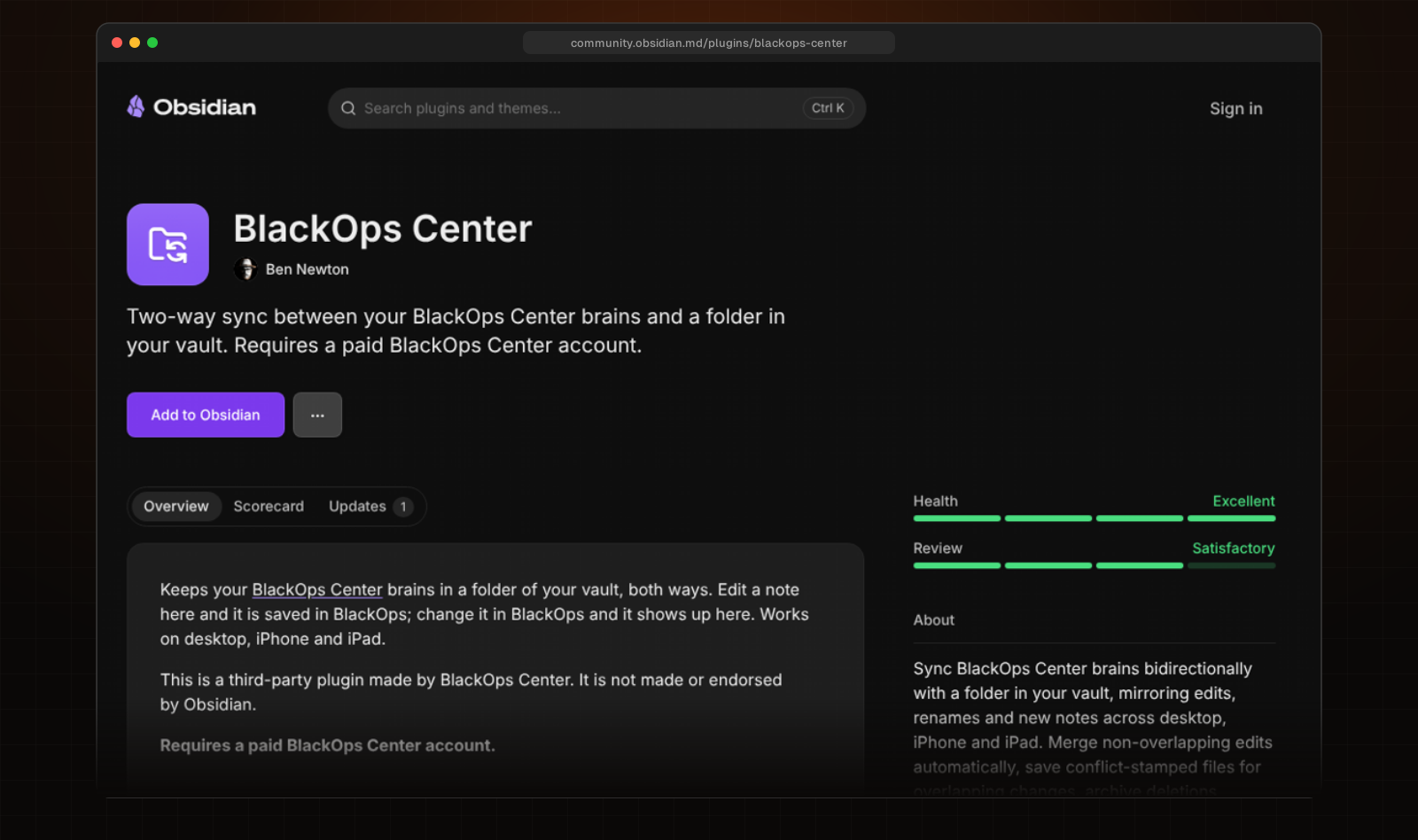
In Obsidian, open Settings, then Community plugins, then Browse, and search for BlackOps Center. You'll find the same listing in Obsidian's community plugin directory, and the source is public on GitHub.
2. Sign in with BlackOps
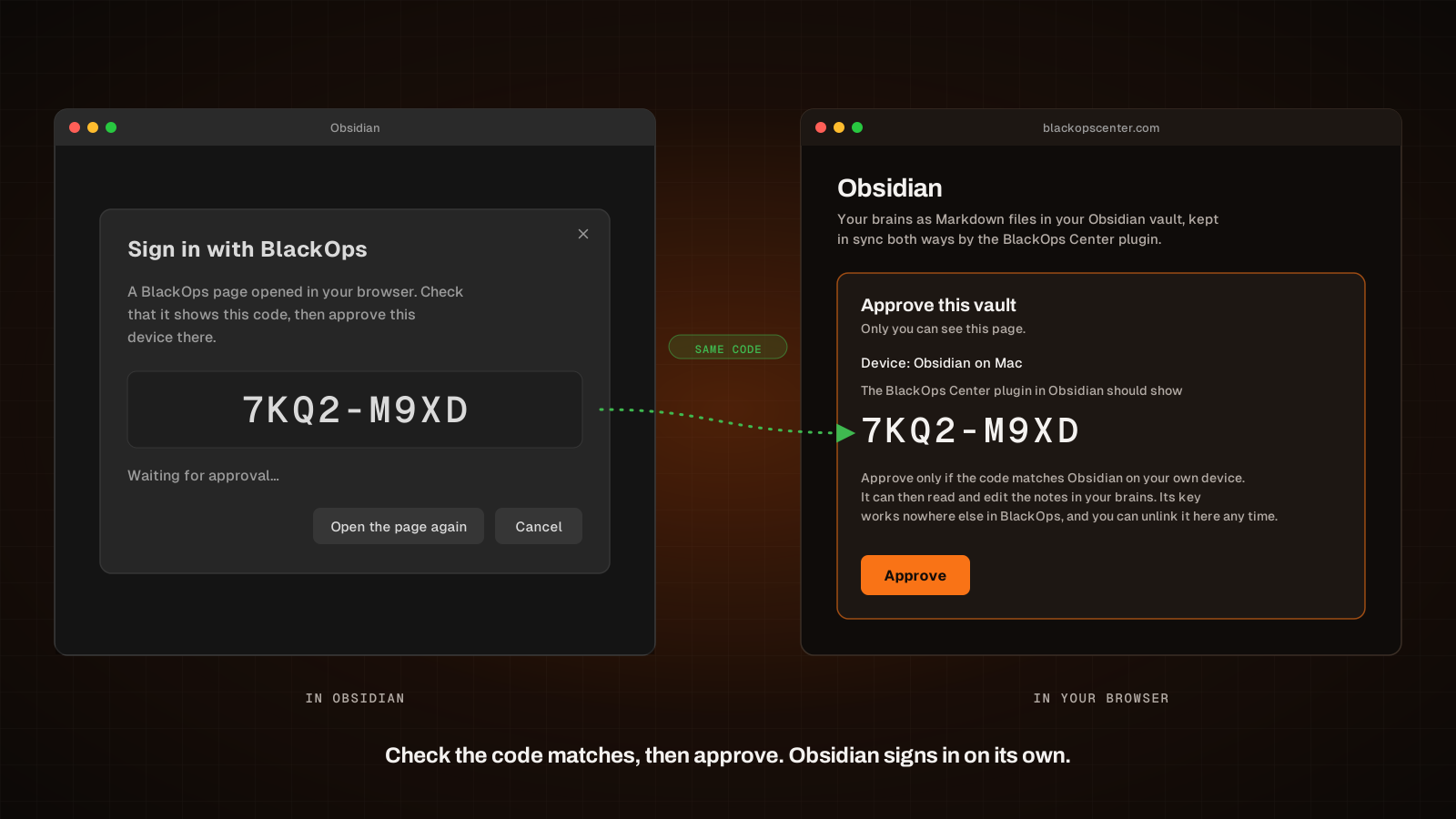
Open the plugin's settings and choose Sign in with BlackOps. Obsidian shows a short code and opens a BlackOps page in your browser. Check that the page shows the same code, then press Approve. Obsidian signs itself in within a few seconds.
The approval page spells out what you're granting. The plugin can read and edit the notes in your brains, its key works nowhere else in BlackOps, and you can unlink the vault from that same page any time.
3. Pick your brains
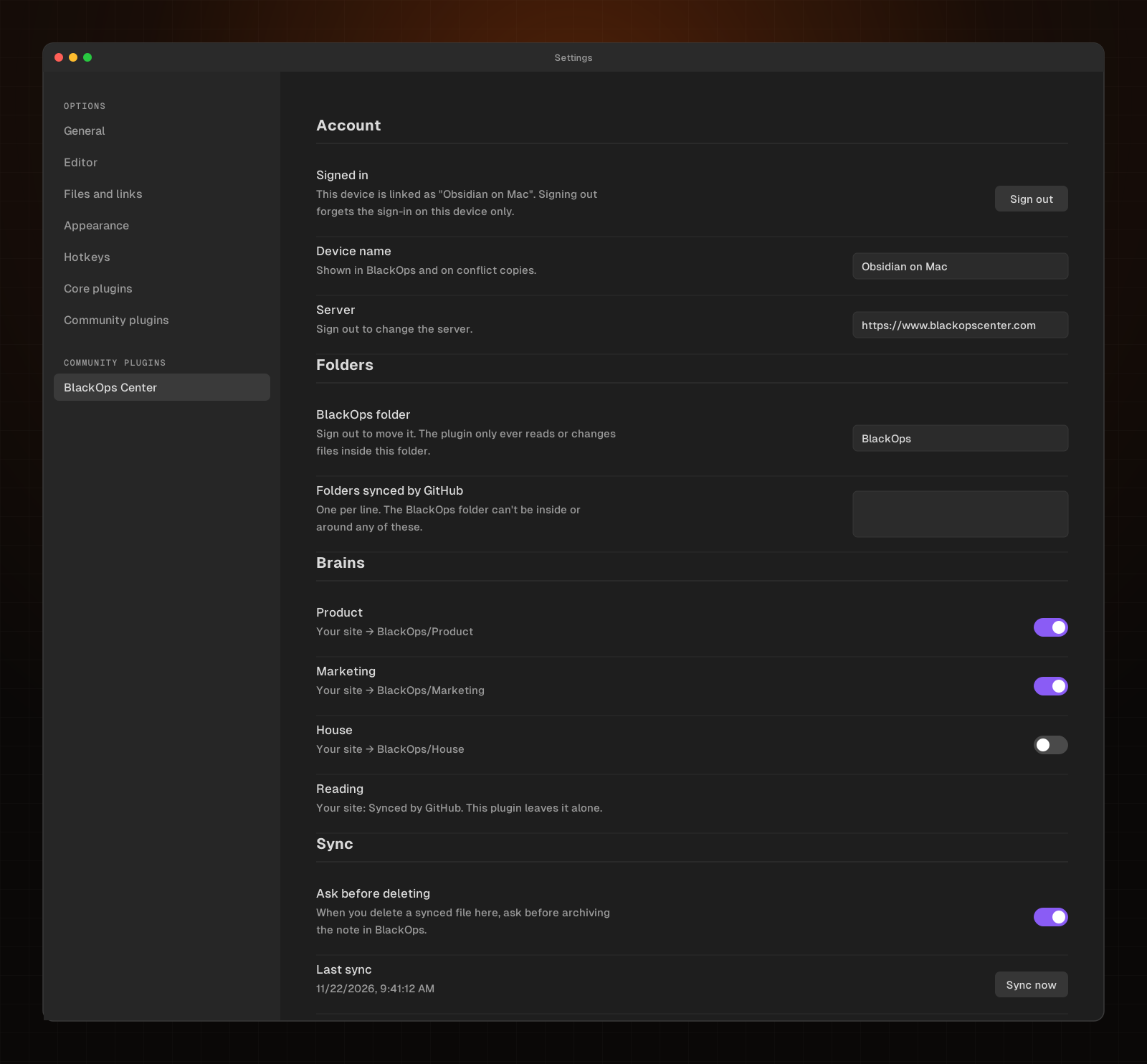
Every brain on your sites shows up as a switch, already on, next to the folder it syncs to: BlackOps/Product, BlackOps/Marketing and so on. Turn off any brain you'd rather keep out of this vault. Give the device a name you'll recognize, like Obsidian on Mac. It shows in BlackOps and on conflict copies.
4. Let it sync
The first sync pulls your brains down as folders of Markdown notes. From there, write the way you always do.
- 1You write in BlackOps/ProductAny note inside a brain folder, on desktop, iPhone or iPad.
- 2About five seconds after you stop typing, it goes upAnd again when you close Obsidian, so nothing waits for a button.
- 3BlackOps saves the note and recompiles the brainThe same checks as any other write, including the one that stops passwords and keys.
- 4Every connected agent reads the new versionA few minutes later, Claude, ChatGPT, Grok and Cursor are all working from it.
- 1An agent adds a note to your Product brainThrough BlackOps, the same way it reads your brains.
- 2Obsidian checks for changesWhen you open it, when you come back to it, every minute while it's in front, and whenever you press Sync now.
- 3The note lands as a Markdown fileIn BlackOps/Product, named after its title, ready to read and link.
- 4You fix it, and the fix goes back upWhat the agent wrote is now yours to keep, edit or delete.
Every note is a plain Markdown file
Nothing about your notes is locked into a format only BlackOps can read. Each note is a .md file named after its title, with a small block of frontmatter on top:
---
blackops_id: 3b9d6f0e-2c41-4f7a-9a55-8e1d7c0b4a21
title: Pricing page notes
brain: Product
tags:
  - pricing
created: '2026-11-18T15:02:44.120+00:00'
updated: '2026-11-21T19:40:07.884+00:00'
---

Lead with the yearly plan.
Keep the FAQ to five questions.
The blackops_id is how the plugin knows which note a file belongs to, so renaming the file never loses track of it. Any frontmatter of your own is kept alongside these fields. If you remove the plugin, you still have a folder of ordinary Markdown files.
Built to be careful with your vault
We kept the plugin's reach small on purpose. Here is what it will and won't do.
- It only reads and changes files inside the BlackOps folder. The rest of your vault is left alone.
- Deleting a synced file asks first, unless you turn that off. BlackOps then archives the note instead of erasing it.
- If you write a password or an API key into a note, BlackOps refuses that change, keeps it on your device, and tells you why. Read more about secret detection.
- If your vault is a git repo, the plugin adds its folders to .gitignore and tells you it did.
- It talks only to blackopscenter.com, over HTTPS, with no analytics. The sign-in key stays in Obsidian's local storage on that device, never in your notes.
When two places edit the same note, nothing is overwritten silently.
Three ways to get your brains into a vault
The plugin isn't the only route, and you can mix them across brains.
Already syncing a brain through GitHub vault sync? The plugin leaves it alone and labels it Synced by GitHub. When you want to switch, Change sync on the Brains page moves a brain between GitHub and the plugin, and shows you a preview first. And if you only want a copy, Download my brains gives you a zip you can open as a vault.
What your agents get out of it
The plugin is a sync tool, but the point is what it opens up. Once your brains live in your vault and in BlackOps at the same time, you write where you think best, in Obsidian, with your own links, templates and daily notes. Every agent you connect, whether Claude, ChatGPT, Grok or Cursor, reads the same brains through BlackOps. And what an agent writes down comes back to you as a file you can read, fix and keep.
Your agents start each task from what you actually know instead of a blank chat, and your vault stays yours: plain files, on your devices.
To go further with that loop, see how your daily note's Work Log files into your brains, how two agents share one build through Comms, and how BlackOps logs your agents' work for them.
Which plans include it
Syncing brains to Obsidian is part of paid BlackOps plans. Trial accounts can't link a vault, and the same goes for downloading your brains as a zip. The plugin syncs brains on sites you own, while brains shared with you from someone else's site stay in BlackOps. See pricing for what each plan includes.
If your vault is already where your best thinking lives, let every agent you work with read it. Start with BlackOps, build your first brain, then install the BlackOps Center plugin and watch your brains show up in Obsidian.
Related Posts
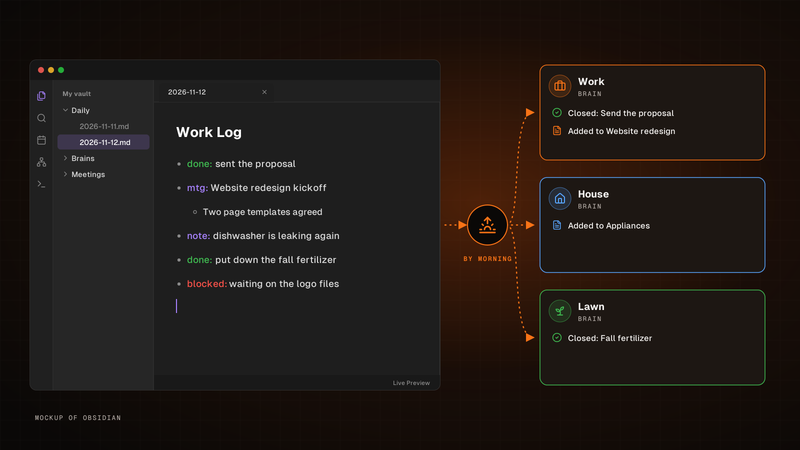
Write one line. It's in the right brain by morning.
Write one line for each thing that happened in the Work Log of your Obsidian daily note. By morning, BlackOps has closed the to-dos and brain tasks you finished, filed the rest into the brain note each line is about, and opened your next note with a receipt.

Your Obsidian Daily Notes Can Finally Talk Back
You've been creating Obsidian daily notes for years. Now BlackOps writes them on your schedule, connects them to your calendar and brains, and lets you talk to them from any agent.
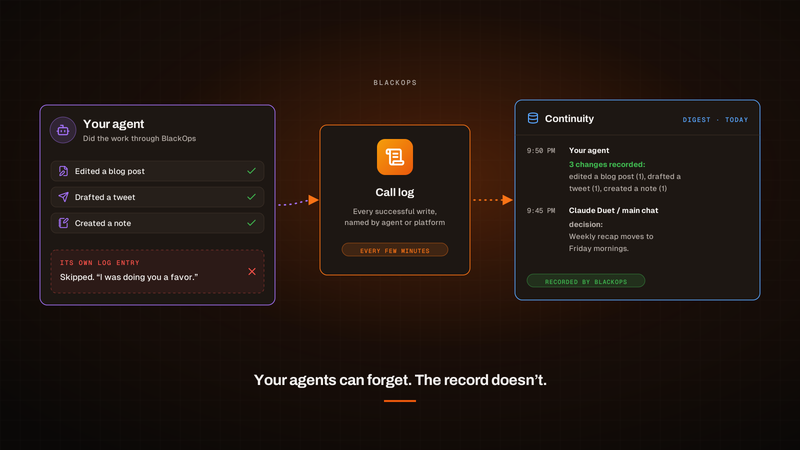
Your Agents Forget to Log Their Work. BlackOps Logs It for Them.
Agents told to log their work still skip it. Continuity now records every change your agents make through BlackOps, straight from the call log, and flags the agents that have stopped logging.